Documentation
caveauAI User Guide
Complete documentation for uploading documents, managing knowledge packages, using AI chat, tools, data pipeline, and API integration.
Getting Started
Logging In
Navigate to ai.bluenotelogic.com and click Sign In. Enter your email address and password, then click the Sign In button. If you don't have an account yet, click "Sign up free" at the bottom of the login page.
ai.bluenotelogic.com/platform/dashboard.php for quick access to your dashboard.Dashboard Overview
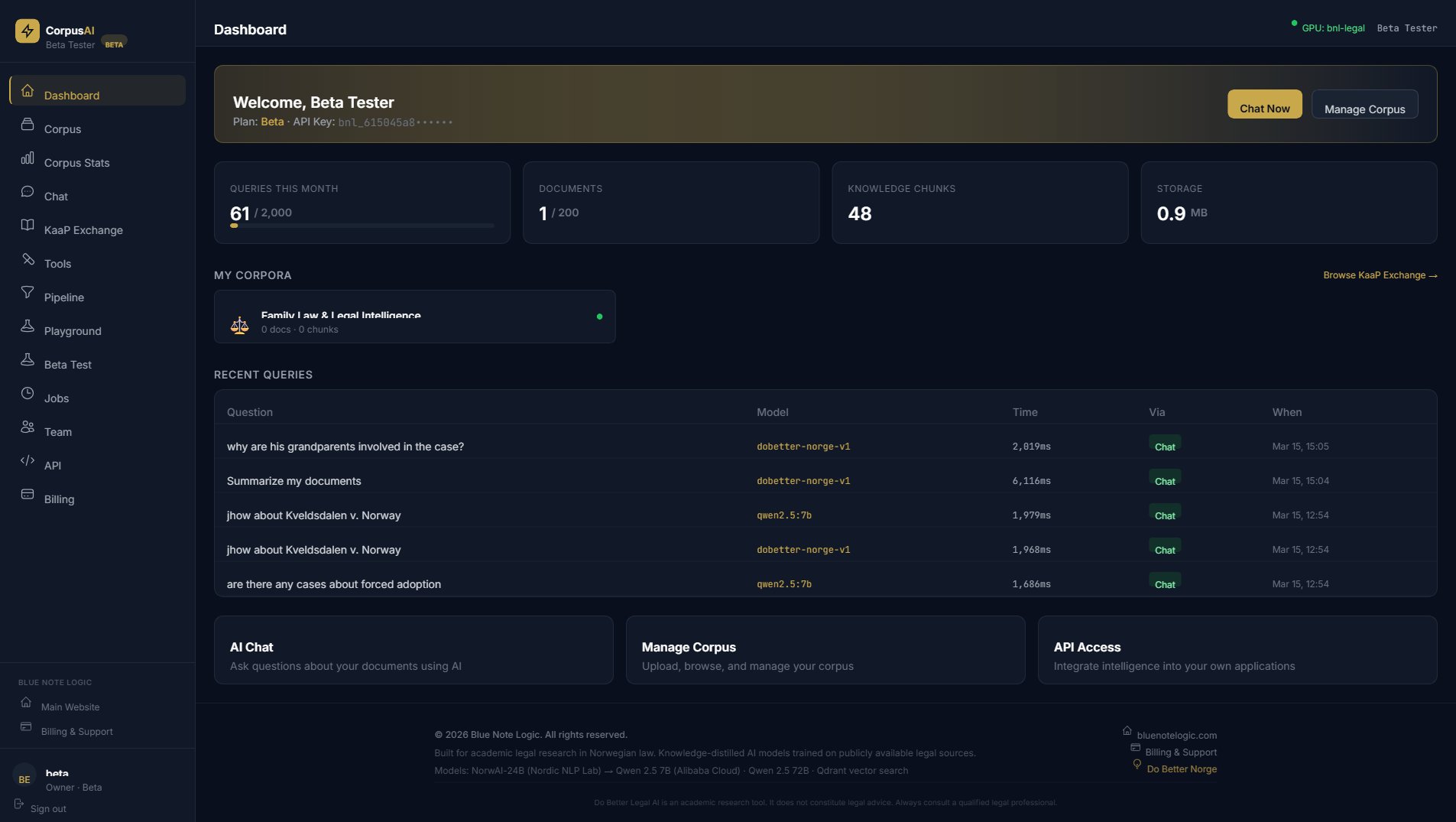
After logging in, you'll see your Dashboard — your command center showing:
- Queries This Month — your current query usage against your monthly limit
- Documents — number of uploaded documents against your plan limit
- Knowledge Chunks — total indexed chunks across all documents
- Storage — disk space used by your uploaded files
- My Corpora — your active knowledge packages with status indicators
The Recent Queries table shows your latest AI interactions with model used, response time, source (Chat or API), and timestamp. Quick-action cards at the bottom let you jump directly to AI Chat, Manage Corpus, or API Access.
Managing Your Corpus
Uploading Documents
Navigate to Corpus > My Corpus from the sidebar. To upload a document:
- Click "Choose File" and select your document (PDF, DOCX, TXT, HTML, or MD format, up to 50 MB).
- Optionally enter a Title (defaults to filename if left blank).
- Choose or type a Category/Folder (e.g., contracts, hr, legal) to organize your documents.
- Click "Upload & Index." The system will process your document, split it into searchable chunks, and index it for AI queries.
Once processing completes, your document appears in the document list with its type, category, word count, chunk count, status ("ready" when fully indexed), and upload date.
AI Models
The Corpus > Models tab shows your available AI models:
| Model | Capability |
|---|---|
| Do Better Legal AI | Fine-tuned Qwen 2.5 7B on 10,000+ Norwegian legal Q&A pairs. Active and ready. |
| Do Better Norge v1 | Knowledge distillation combining NorwAI-24B + Qwen 72B reasoning + legal anchor data. Coming soon. |
| Qwen 2.5 72B | 72-billion parameter model for advanced reasoning. Enterprise plans only. |
Shared Corpora
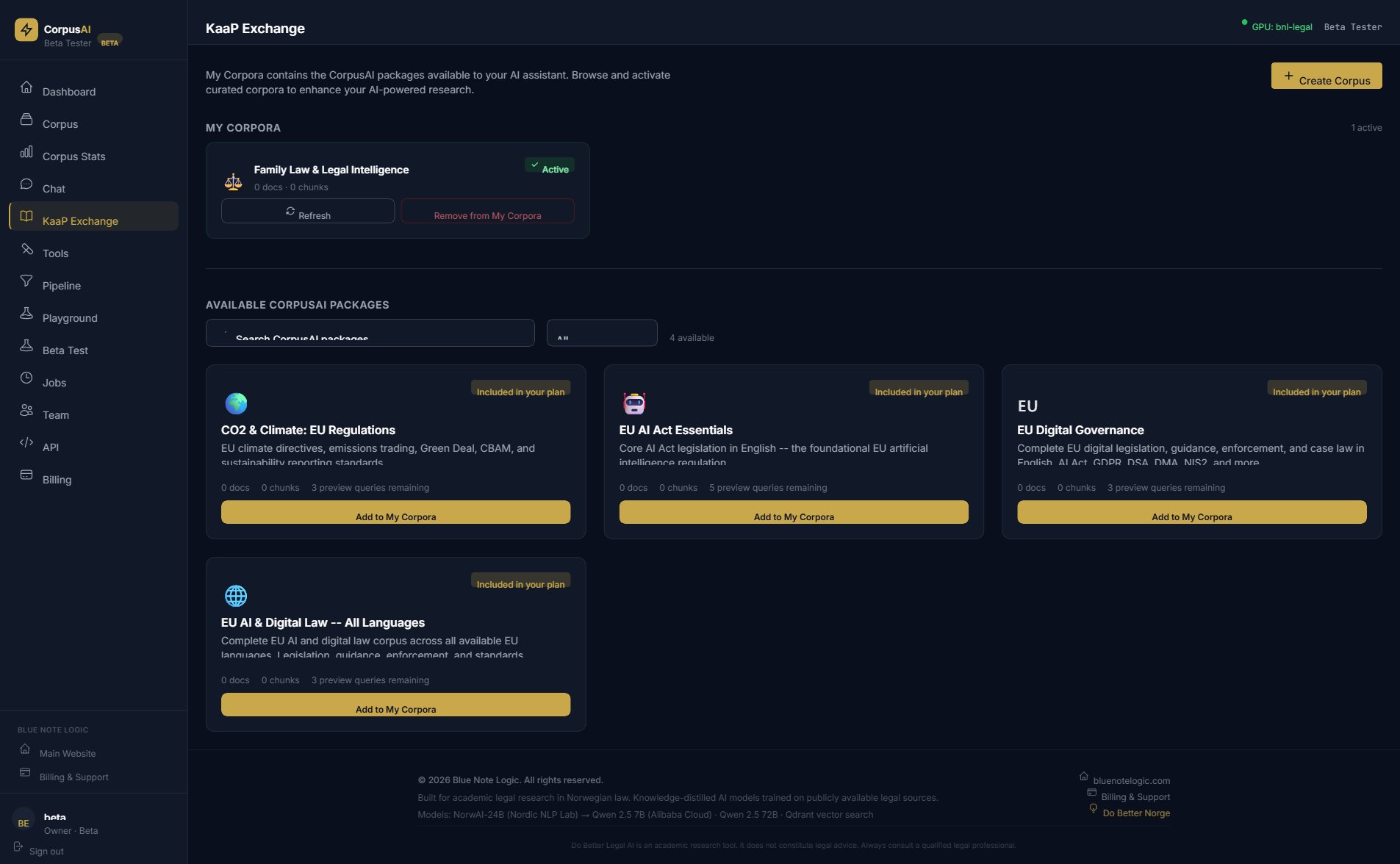
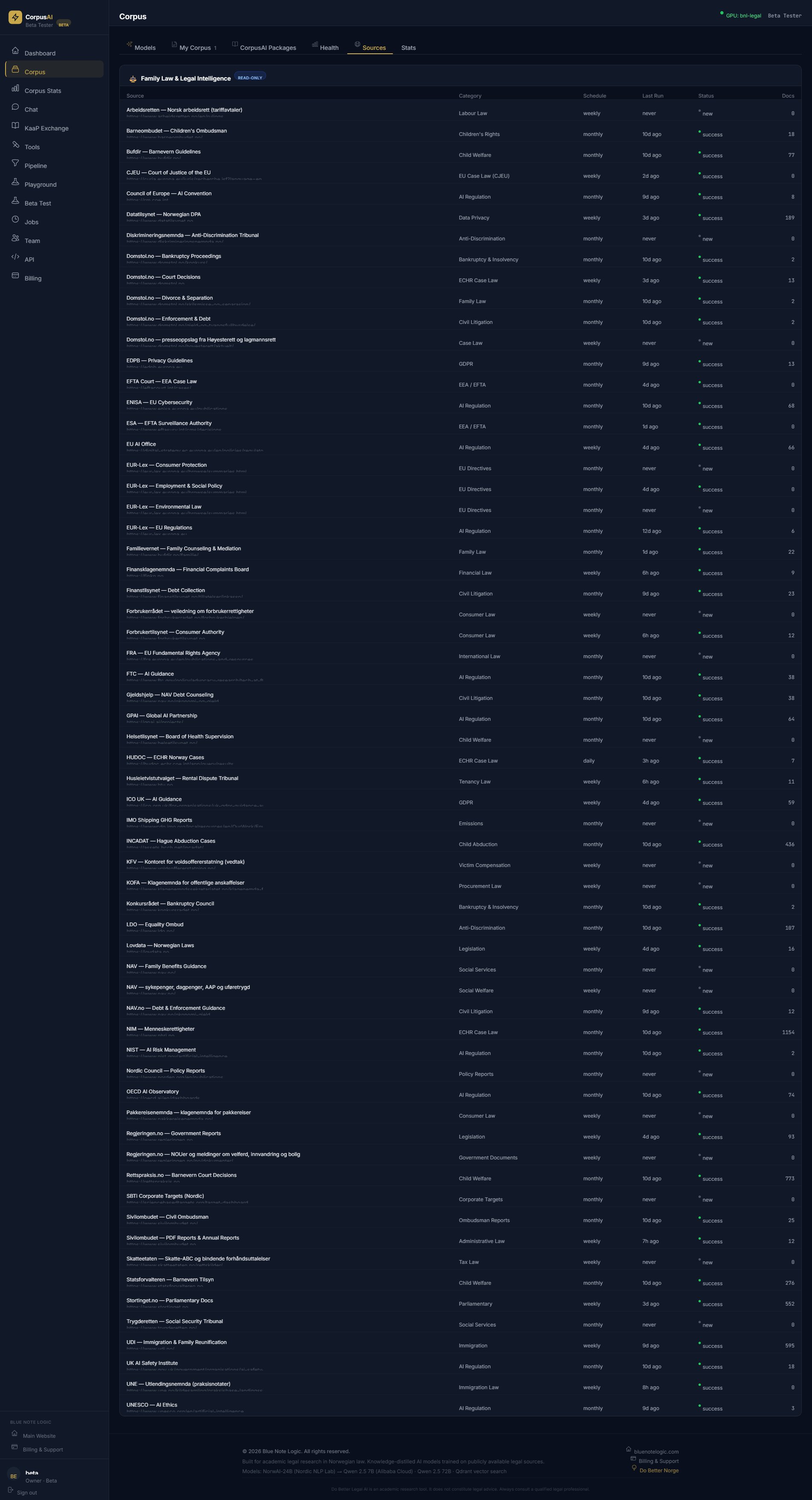
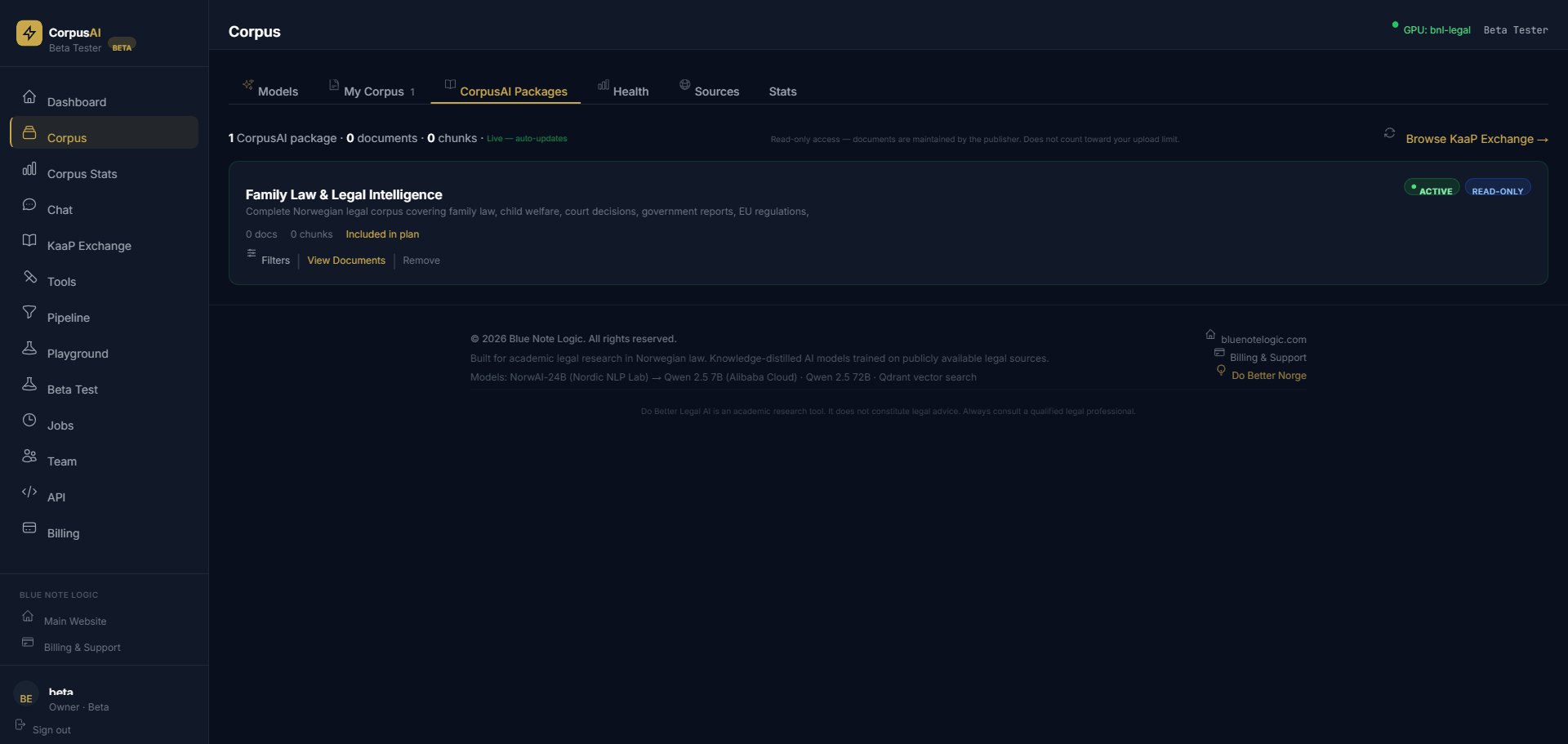
Under Corpus > Shared Corpora, you can view and manage subscribed knowledge packages. These are curated, read-only document collections maintained by Blue Note Logic that auto-update with new content.
Packages do not count toward your upload limit. Browse the Shared Corpora from the sidebar to preview packages, see their contents, and add them to your corpora with one click.
Available packages include EU AI Act Essentials, EU Digital Governance, CO2 & Climate Regulations, Family Law & Legal Intelligence, and more.
Corpus Health & Statistics
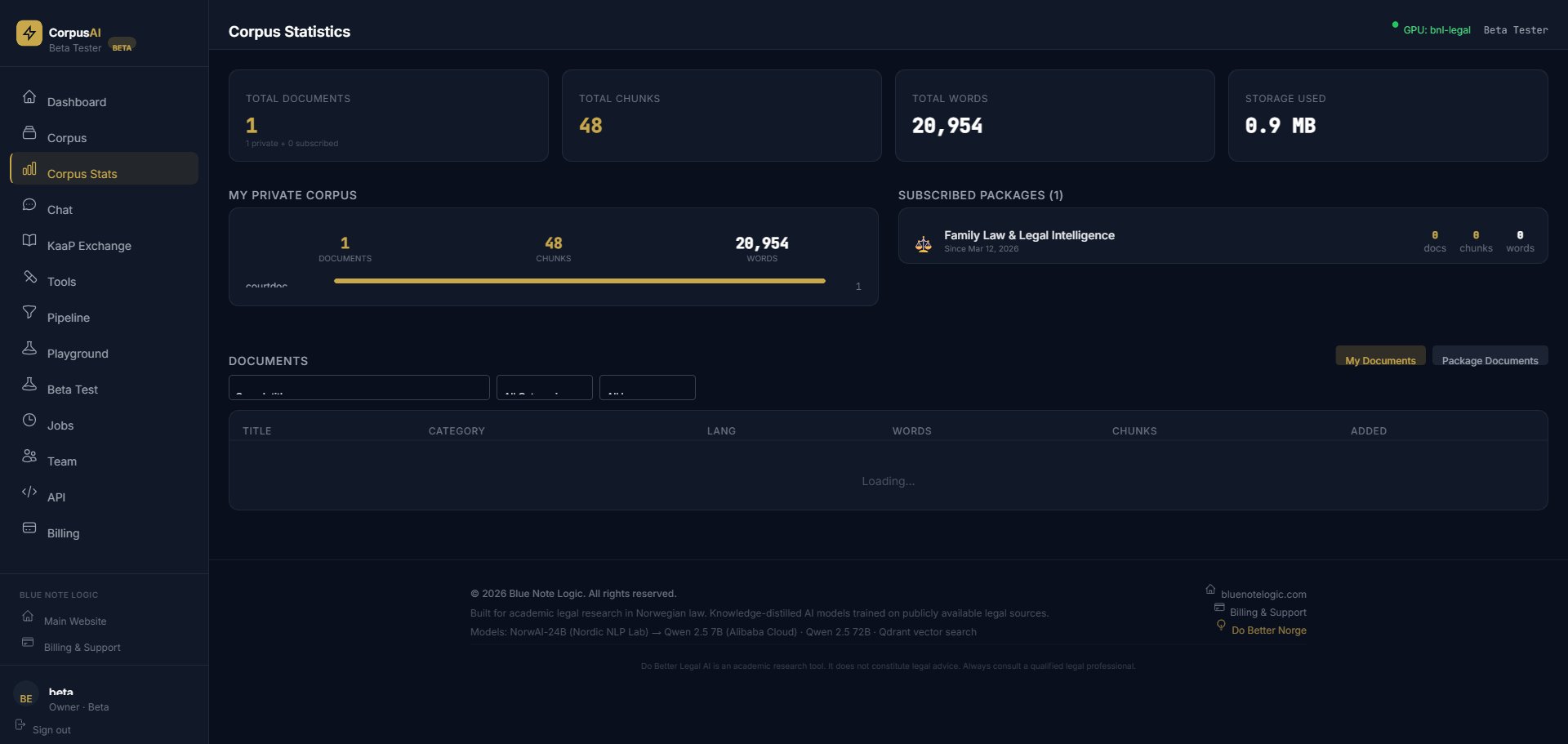
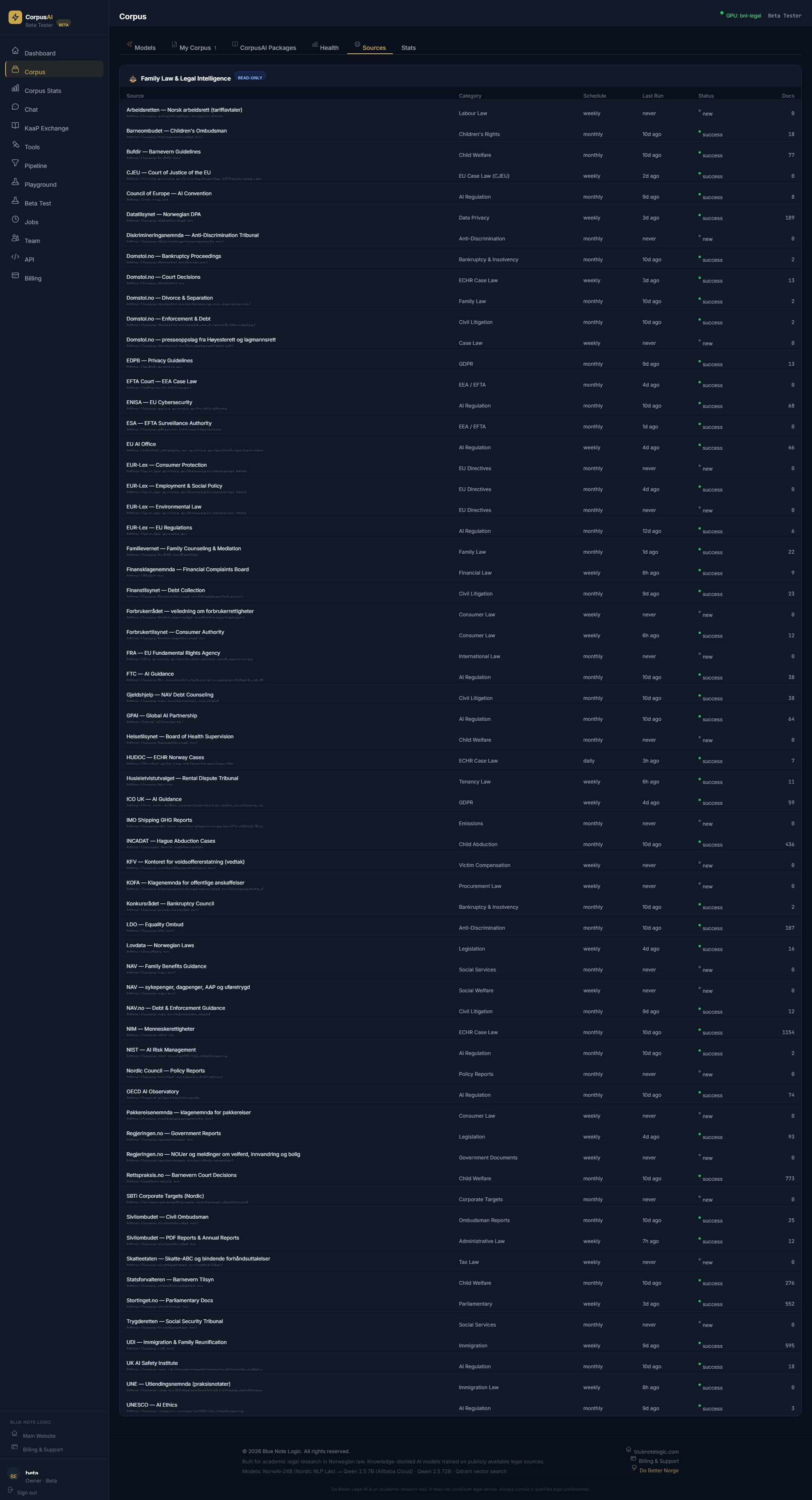
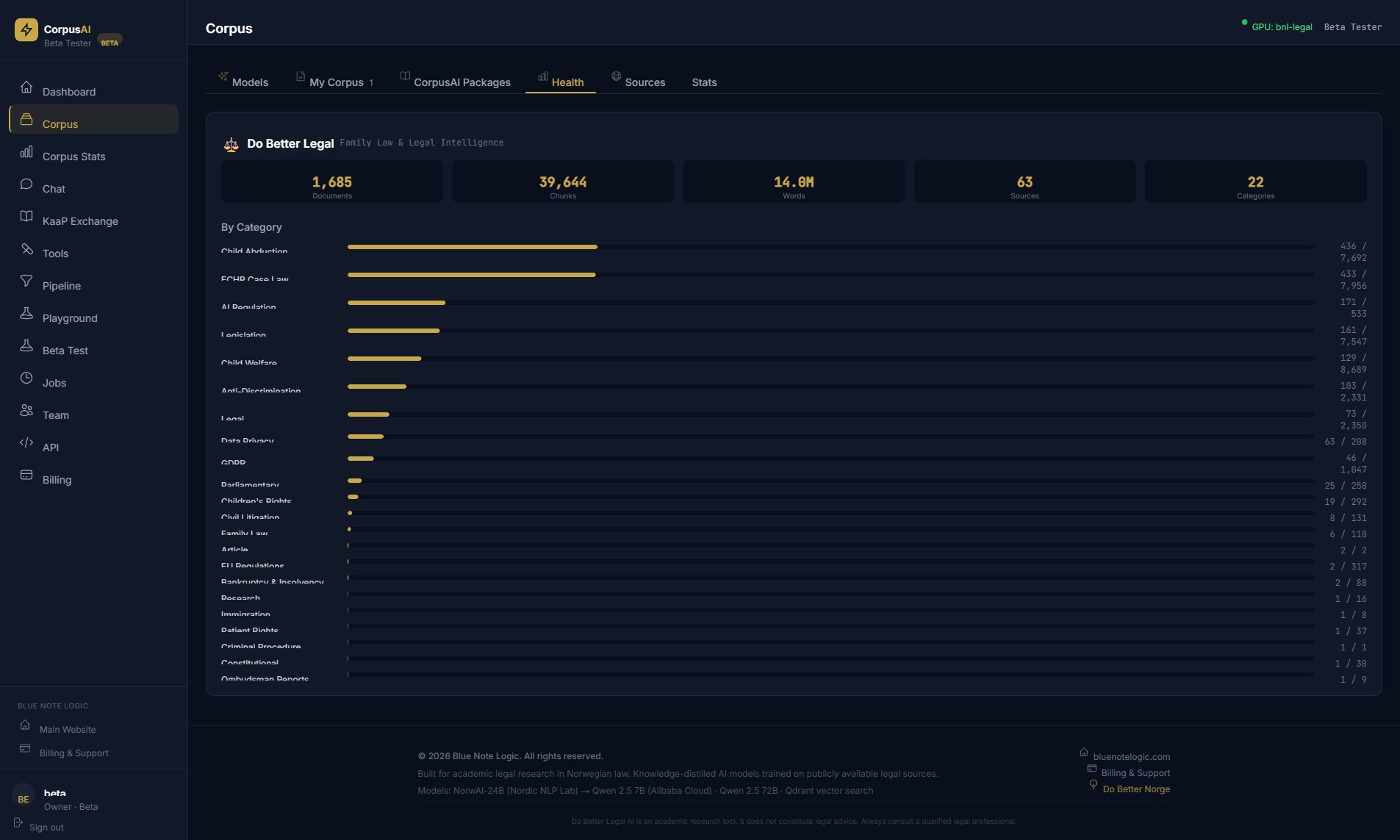
The Health tab provides a detailed breakdown of your subscribed package's content by category, showing document and chunk counts across areas like Child Abduction, ECHR Case Law, AI Regulation, Legislation, and more.
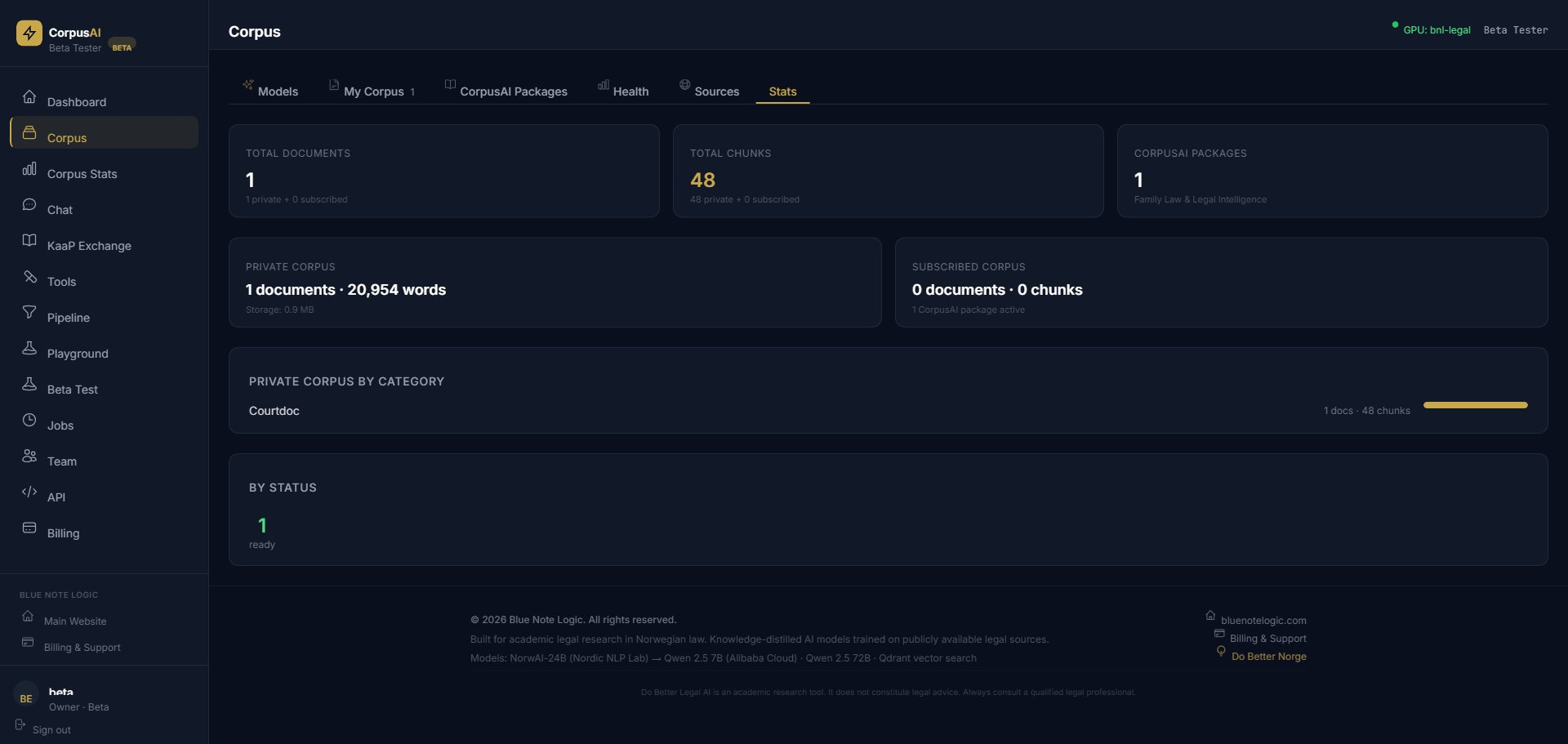
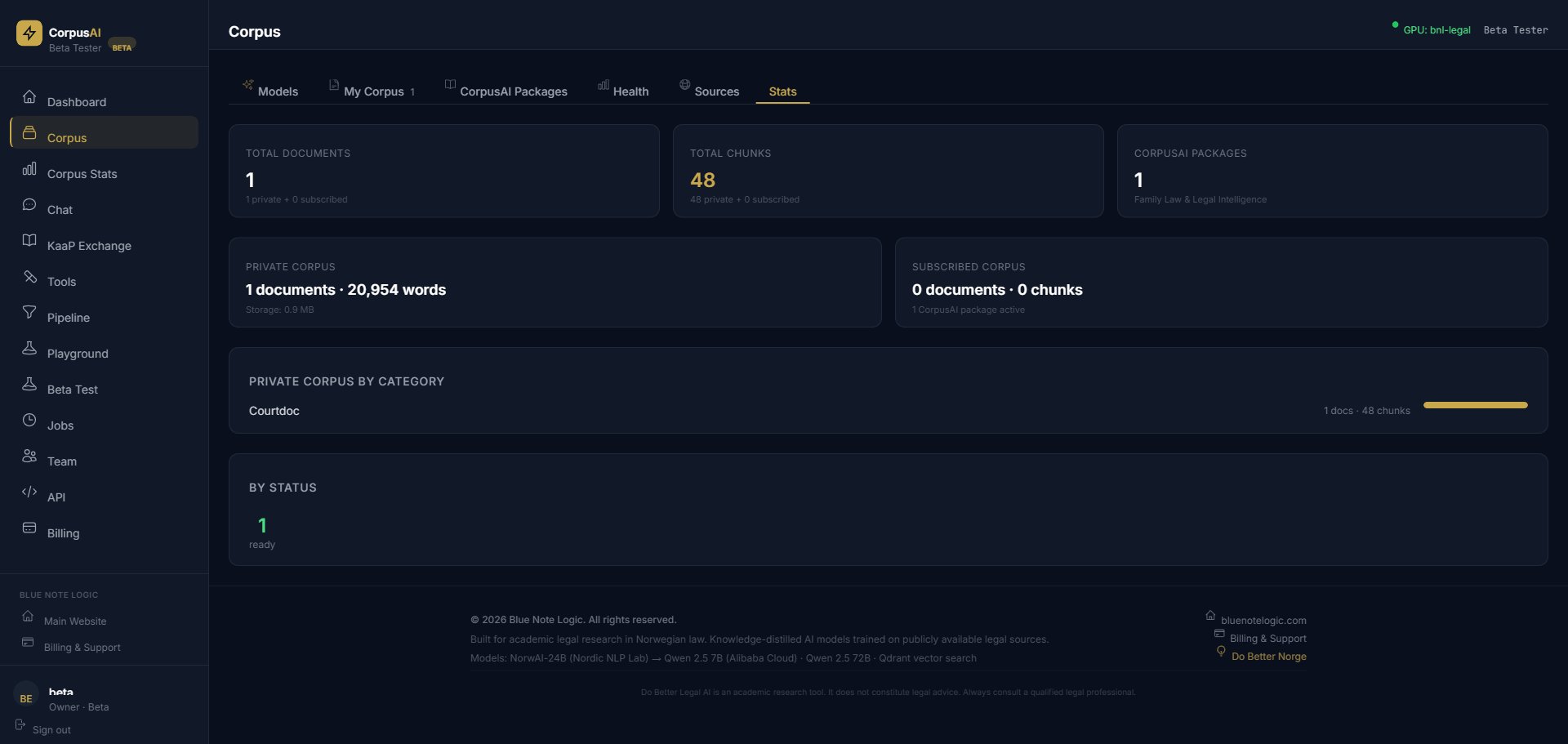
The Corpus Stats sidebar page gives you an overview of your private corpus (documents, chunks, words, storage) alongside your subscribed packages, with a category breakdown chart.
Using AI Chat
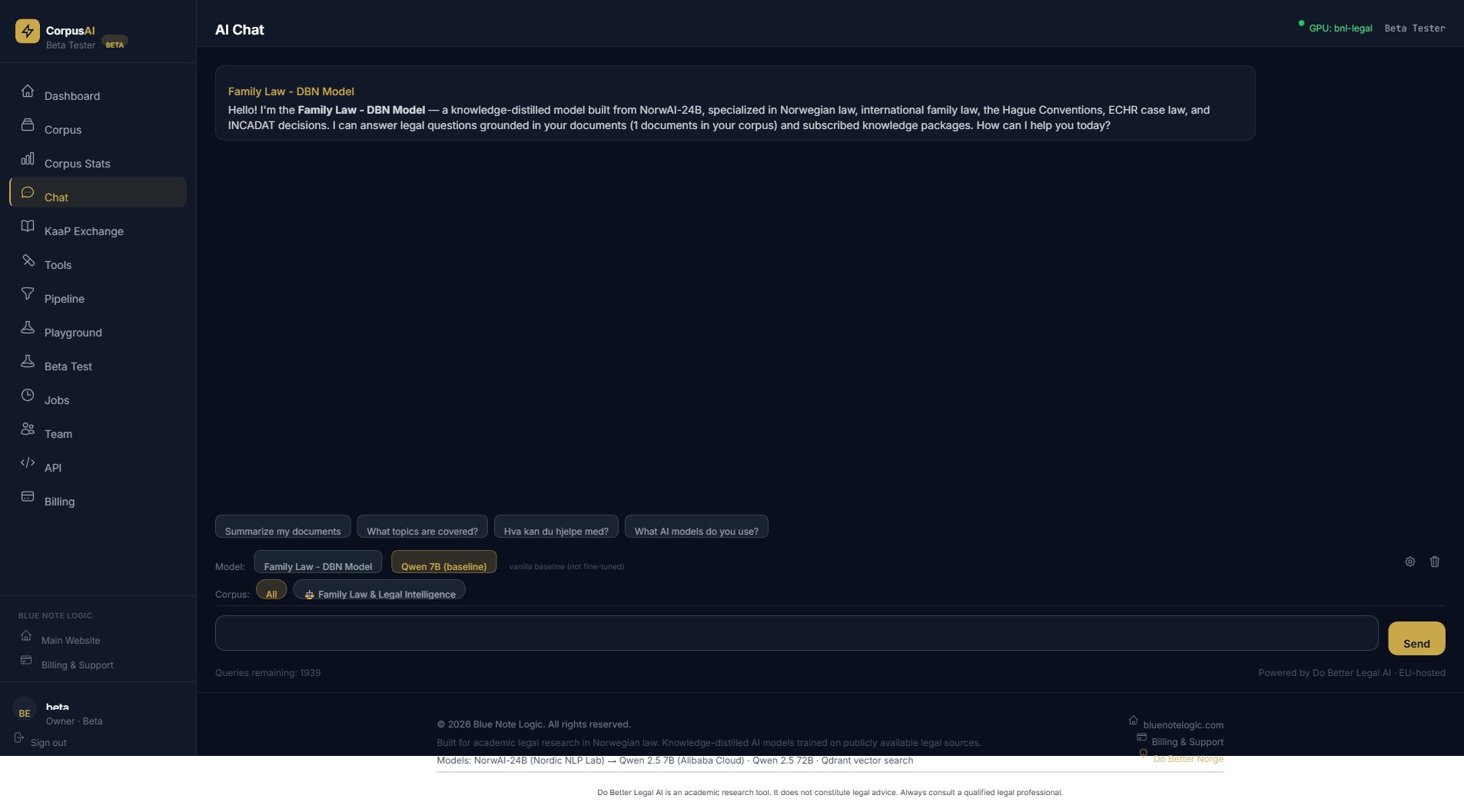
AI Chat is your primary interface for asking questions about your documents. Click Chat in the sidebar to open it.
Asking Questions
- Type your question in the text box at the bottom of the screen.
- Click Send or press Enter.
- The AI responds with an answer grounded in your document corpus, citing relevant sources.
Model Selection
Below the chat area, switch between models:
- Family Law — DBN Model: Your fine-tuned model with corpus RAG (recommended)
- Qwen 7B (baseline): Vanilla baseline model without fine-tuning (for comparison)
Corpus Selection
Choose which corpus to search against: "All" queries both your private documents and subscribed packages, or select a specific package to narrow results.
Quick Start Prompts
When starting a new chat, suggested prompts appear to help you get started, such as "Summarize my documents," "What topics are covered?" and more.
AI-Powered Tools
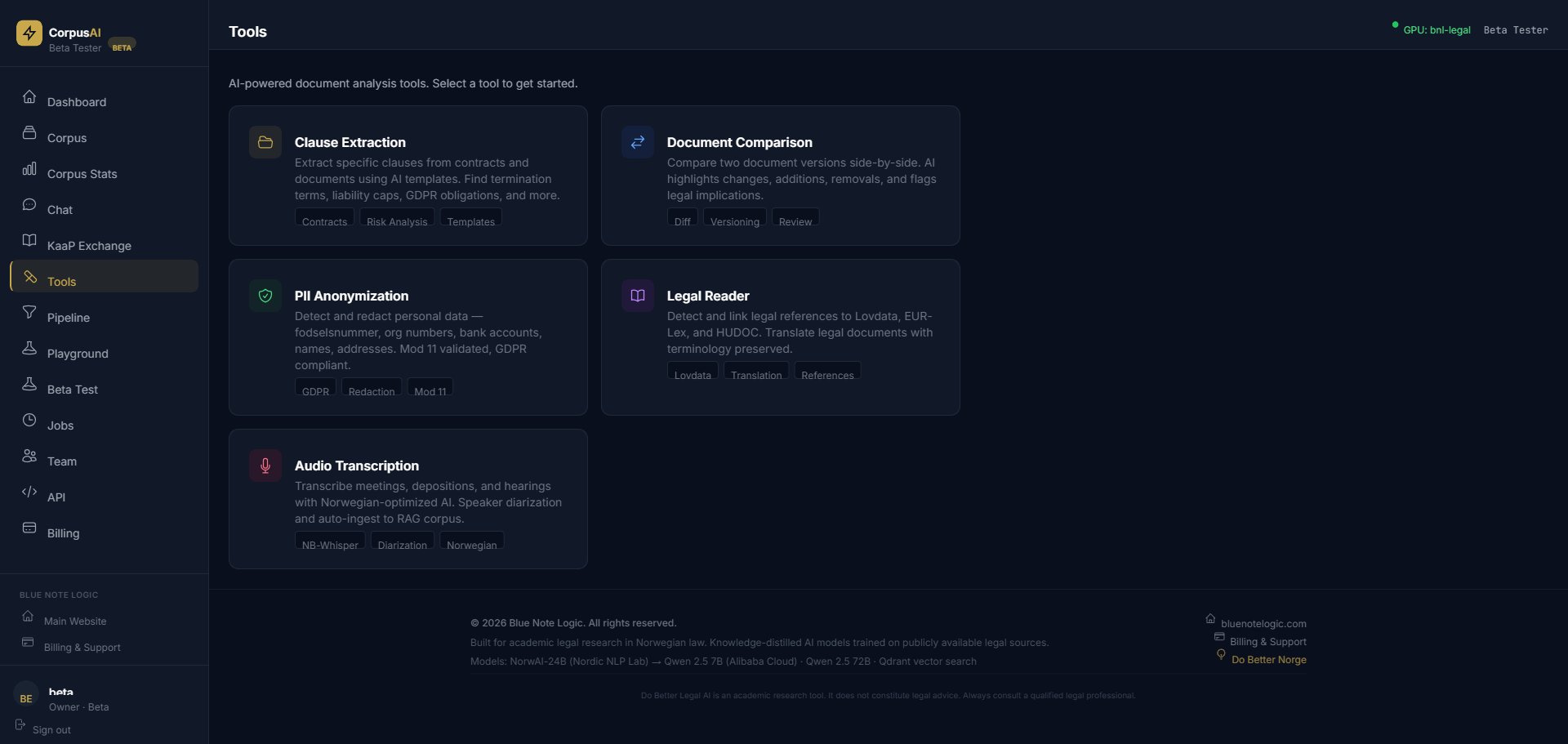
caveauAI includes five specialized document analysis tools accessible from the Tools page in the sidebar.
Clause Extraction
Extract specific clauses from contracts and documents using AI templates. Useful for finding termination terms, liability caps, GDPR obligations, and more. Upload a document or select one from your corpus, choose the clause type, and the AI extracts and highlights relevant sections.
Document Comparison
Compare two document versions side-by-side. The AI highlights changes, additions, and removals, and flags any legal implications of the differences. Useful for contract versioning and review workflows.
PII Anonymization
Detect and redact personal data from documents, including Norwegian-specific identifiers (fodselsnummer, org numbers), bank accounts, names, and addresses. Mod 11 validated and GDPR compliant.
Legal Reader
Automatically detect legal references in text and link them to authoritative sources: Lovdata for Norwegian law, EUR-Lex for EU legislation, and HUDOC for European Court of Human Rights decisions. Also provides document translation with legal terminology preserved.
Audio Transcription
Transcribe meetings, depositions, and hearings using Norwegian-optimized AI (NB-Whisper). Features include speaker diarization (identifying who said what) and automatic ingestion of transcripts into your RAG corpus for AI querying.
Data Pipeline
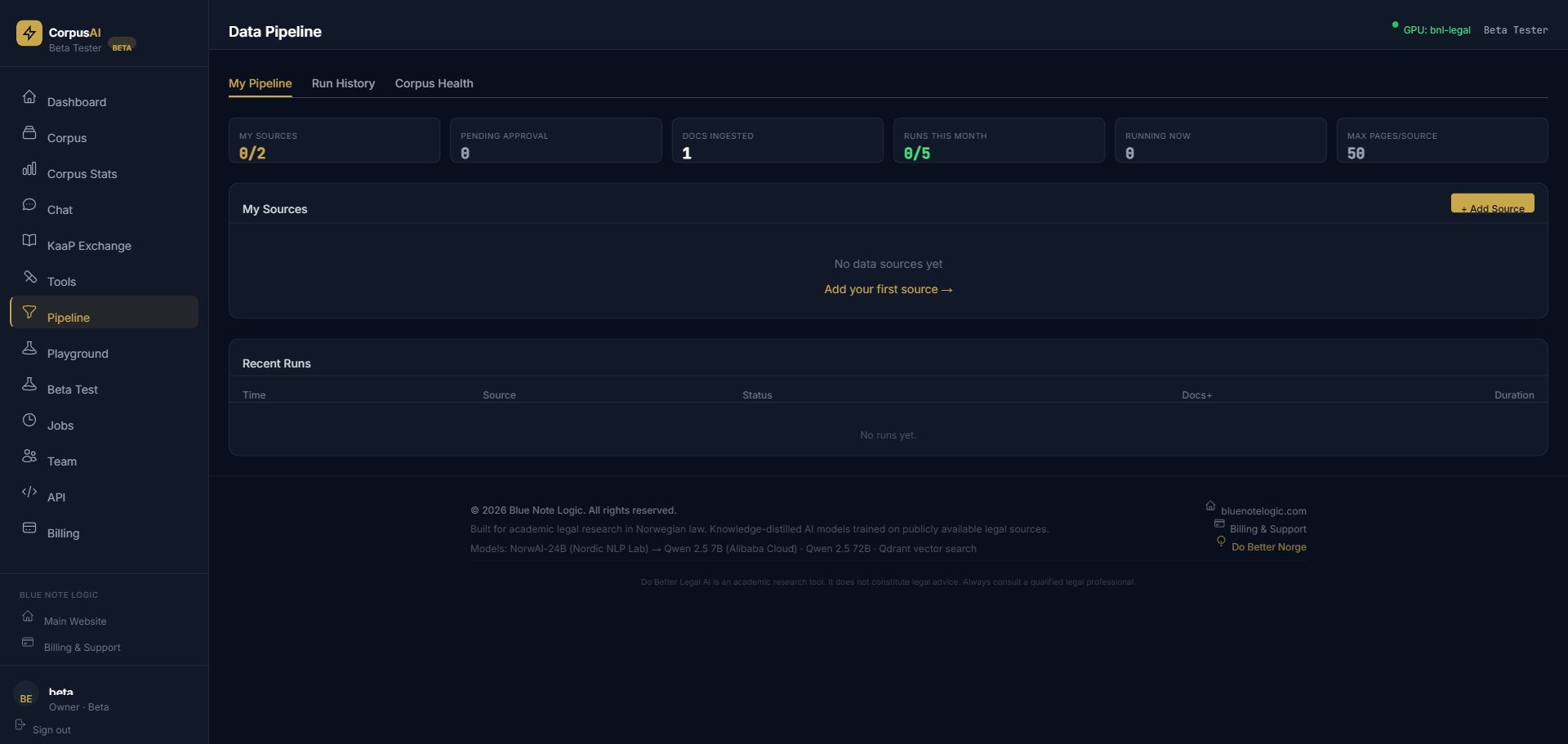
The Data Pipeline automates document ingestion from web sources. Access it via the Pipeline sidebar item.
Adding a Source
- Click "+ Add Source" on the My Pipeline tab.
- Enter the source URL, name, and category.
- Set a schedule (weekly or monthly) for automatic refreshes.
- Save. The scraper will run on schedule and add new documents to your corpus automatically.
Monitoring
The dashboard shows your source limits, pending approvals, docs ingested, runs this month, and currently running scrapers. The Run History tab provides a detailed log of all scraper executions.
Playground & Research
Beta Chat
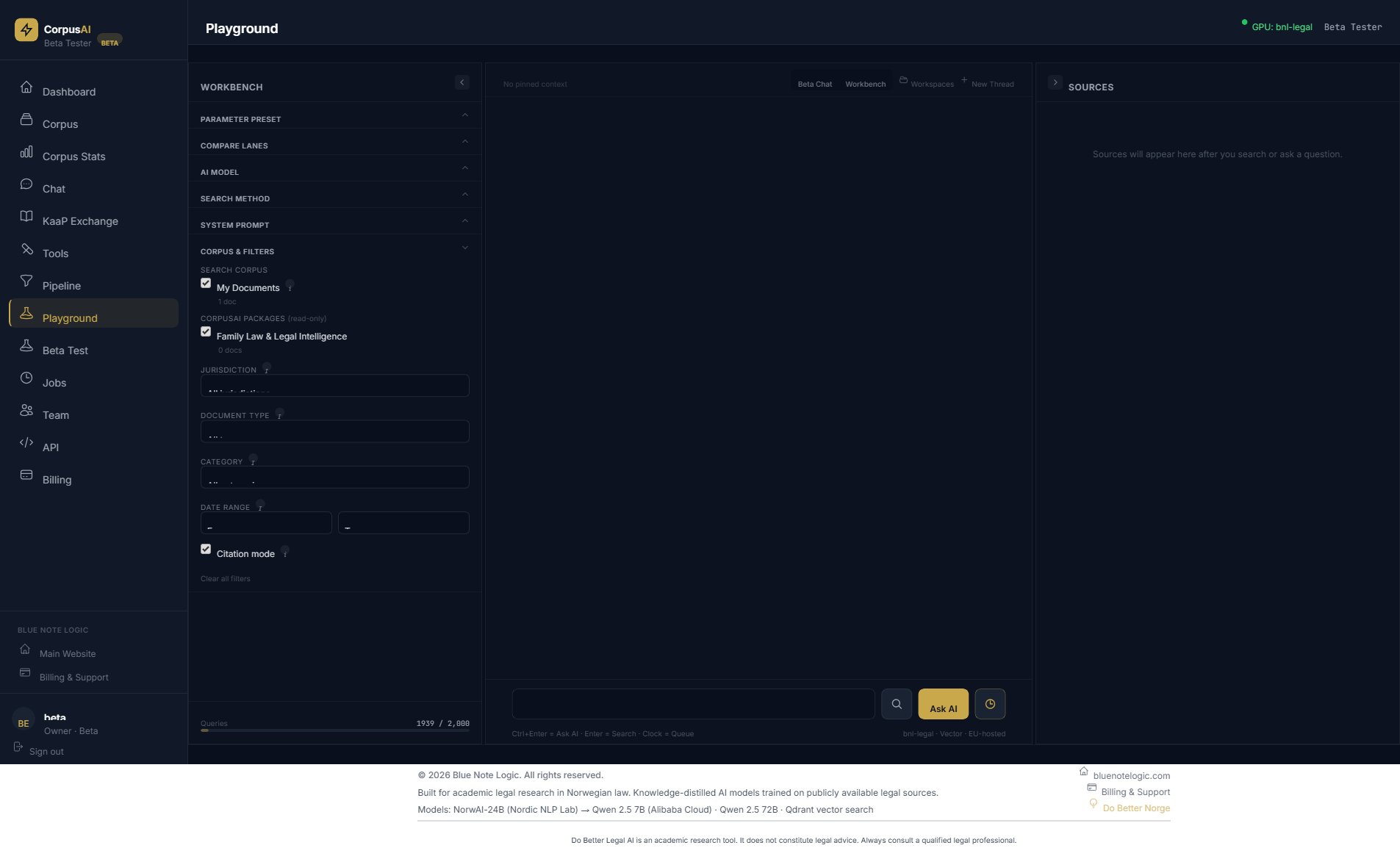
The Playground's Beta Chat mode offers a simplified testing flow. Ask one focused question, review the answer, then leave structured feedback that feeds into model fine-tuning. Use the Test Lens dropdown to select evaluation criteria.
Workbench
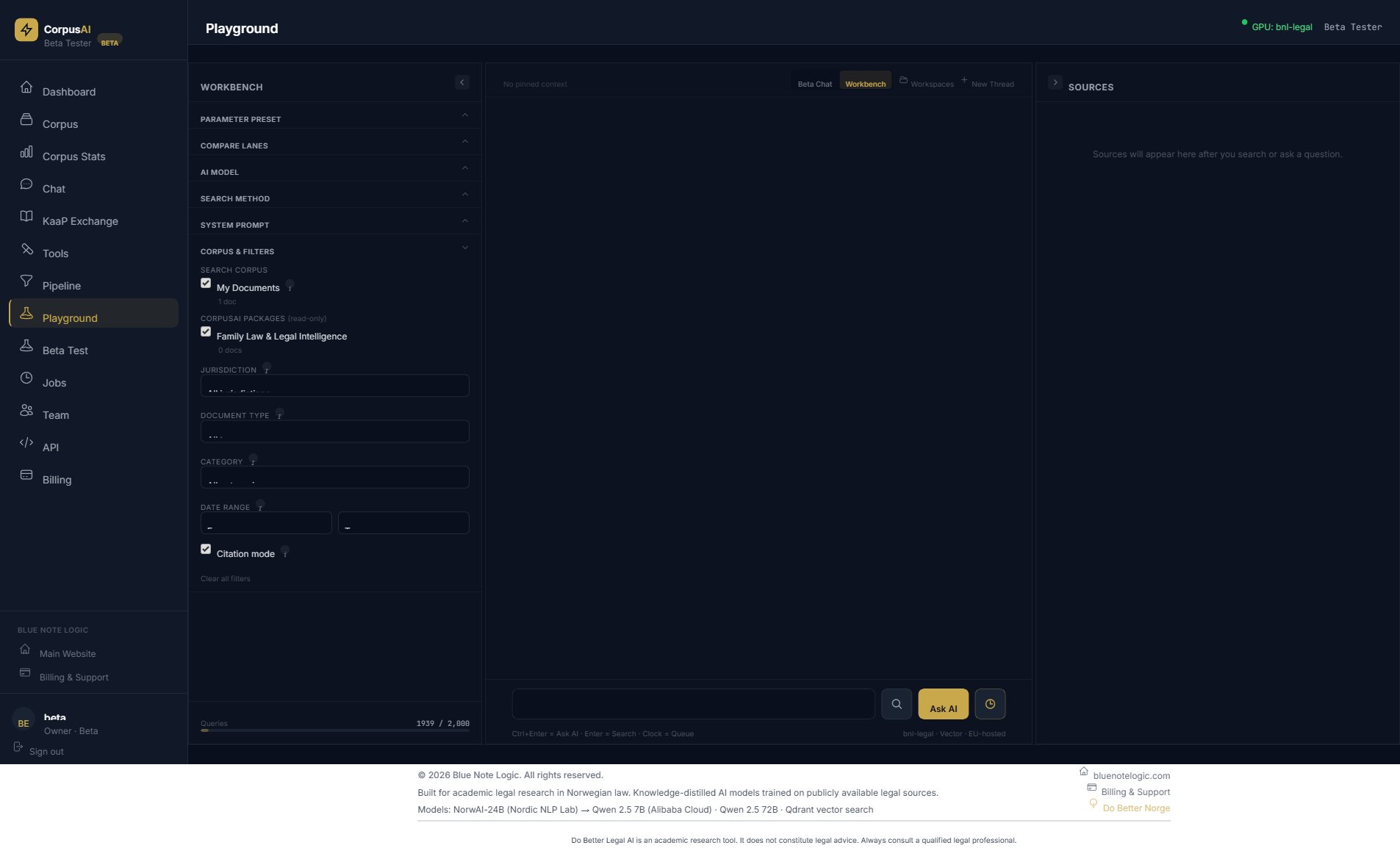
The Workbench is your advanced research environment. The left panel exposes configurable parameters:
- Parameter Preset: Save and load configuration presets
- AI Model: Select which model to query
- Search Method: Vector (semantic), Keyword (exact match), or Hybrid (both)
- System Prompt: Customize the AI's behavior and response style
- Corpus & Filters: Filter by jurisdiction, document type, category, and date range
- Citation Mode: Enable clickable citations linking to source documents
The Sources panel on the right shows which documents were used to generate each response, with relevance scores.
Model Comparison (Beta Test)
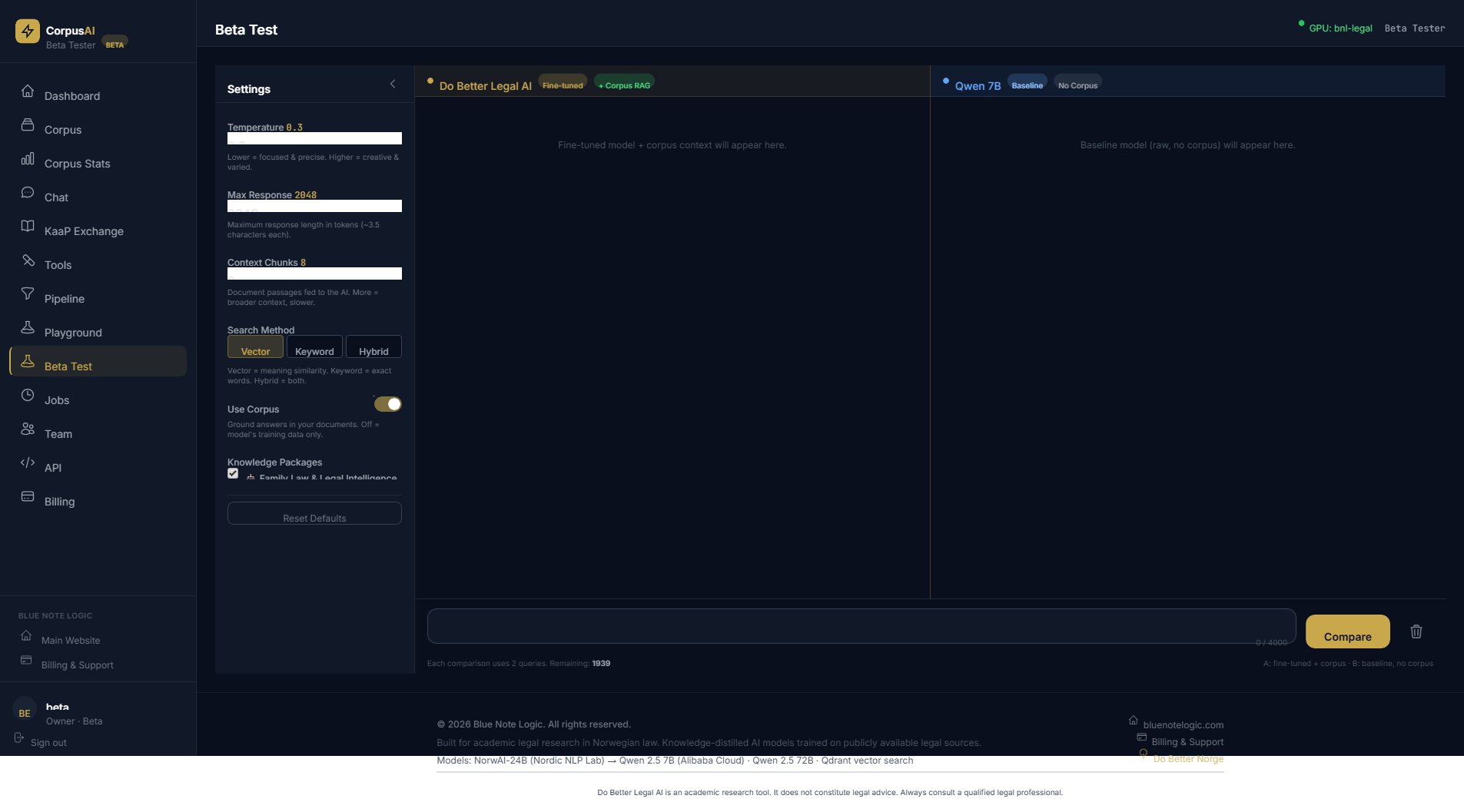
The Beta Test page lets you compare your fine-tuned model against the baseline Qwen 7B side-by-side. On the left panel, configure:
- Temperature — lower = more focused, higher = more creative
- Max Response Length — control output size
- Context Chunks — more = broader context from your corpus
- Search Method — Vector, Keyword, or Hybrid
Ask a question and both models answer simultaneously, letting you evaluate quality differences.
Jobs Queue
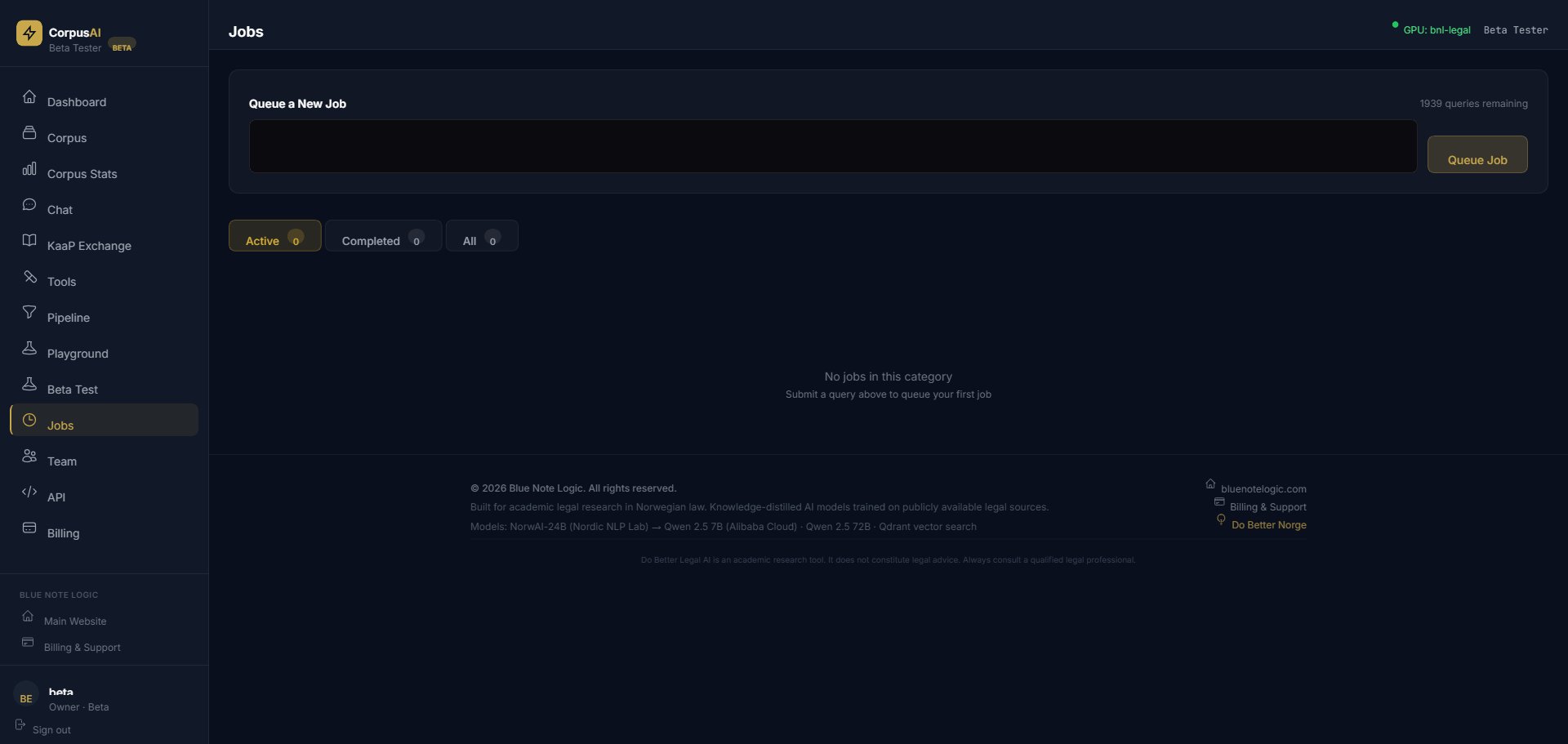
The Jobs feature lets you queue research queries for background processing.
- Navigate to Jobs in the sidebar.
- Enter your question or research query in the text area.
- Click "Queue Job." The query enters the Active queue.
- Switch between Active, Completed, and All tabs to track progress and review results.
Team Management
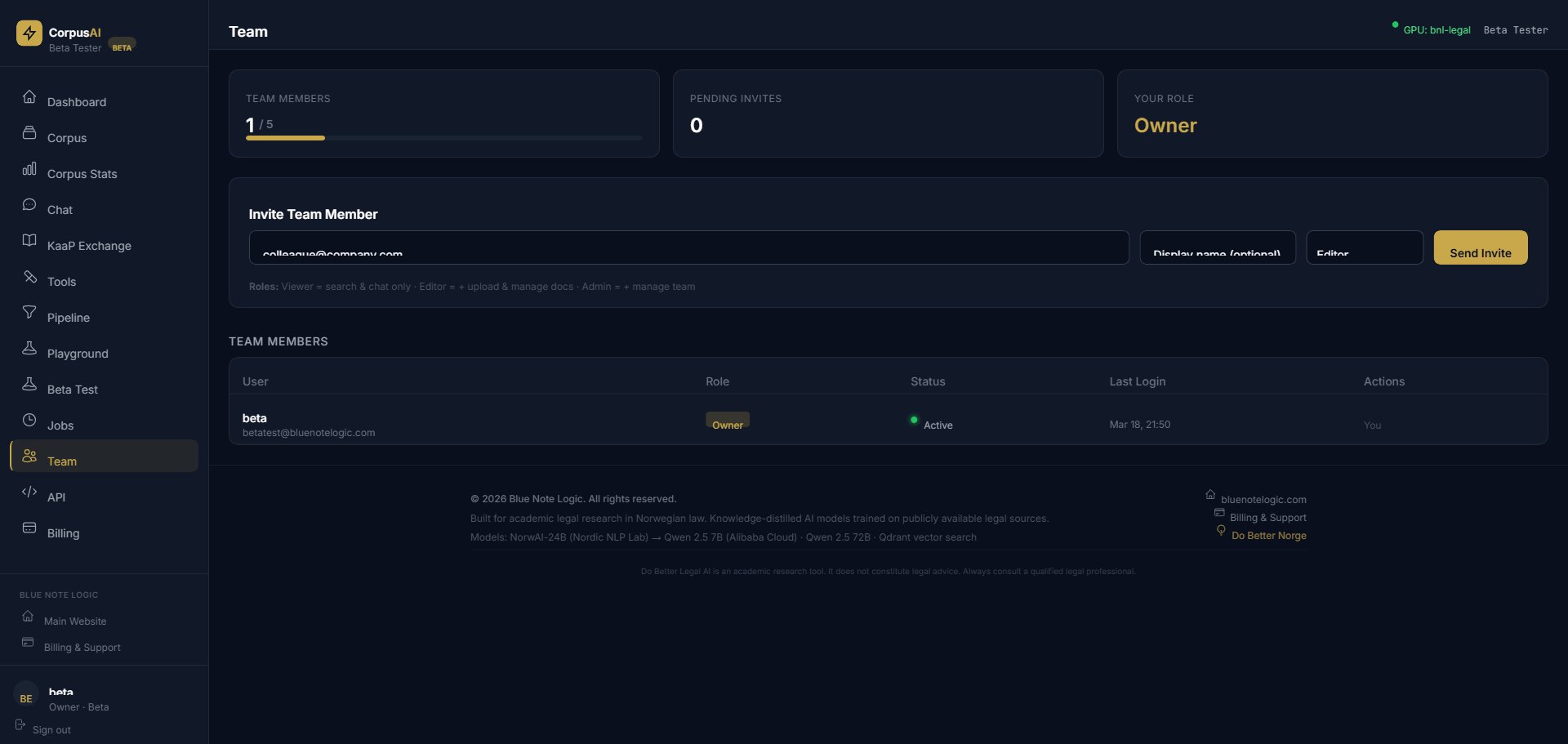
Manage your organization's team from the Team page in the sidebar.
Inviting Team Members
- Enter the colleague's email address.
- Optionally add a display name.
- Select their role from the dropdown.
- Click "Send Invite."
Roles
| Role | Permissions |
|---|---|
| Viewer | Search and chat only. Can query the AI and view documents but cannot upload or manage. |
| Editor | Everything Viewer can do, plus upload and manage documents in the corpus. |
| Admin | Everything Editor can do, plus manage team members, invitations, and settings. |
API Access
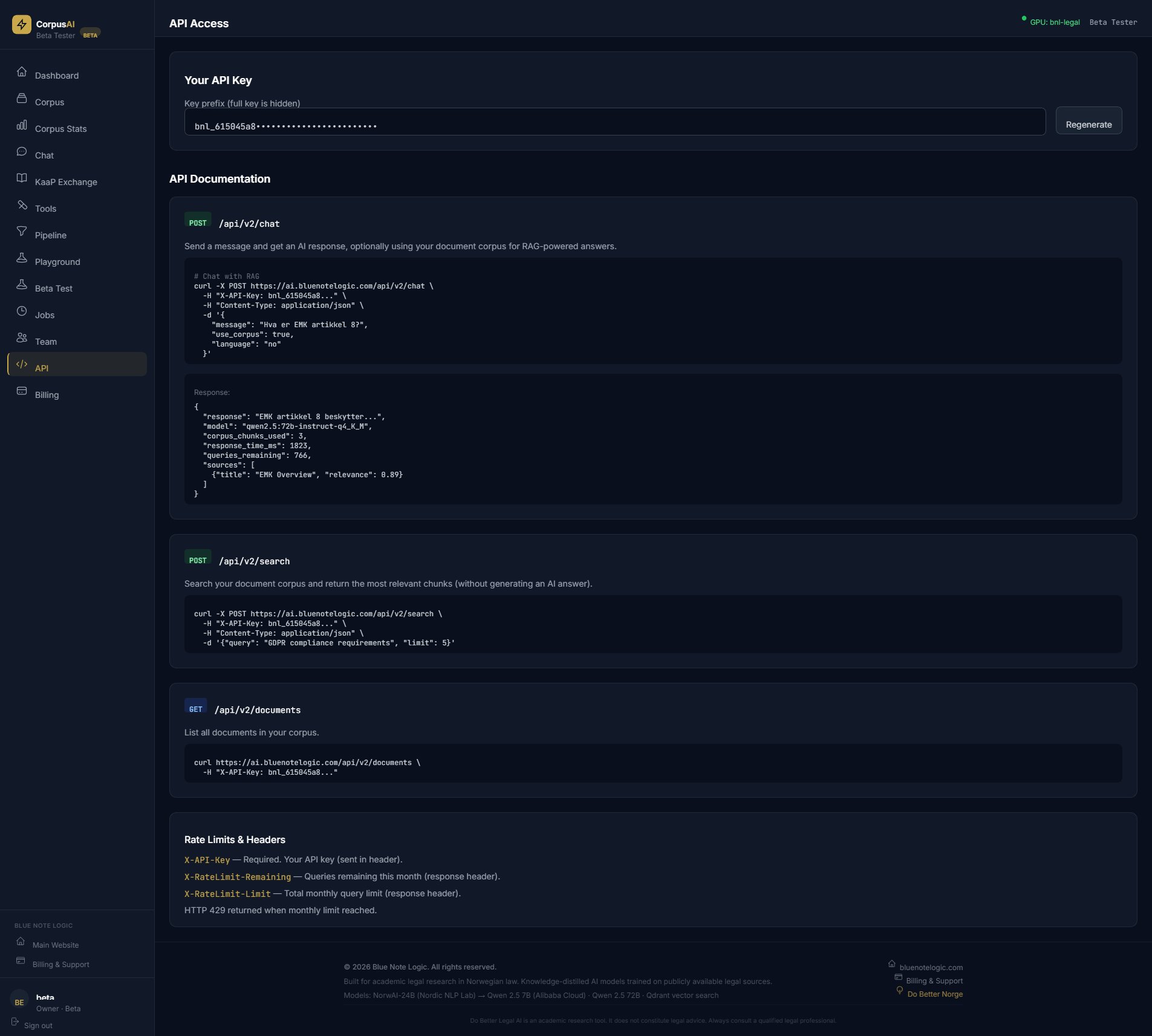
Your API Key
Your API key prefix is displayed on the page (the full key is hidden for security). Use the "Regenerate" button if you need a new key. Include the key in all API requests as the X-API-Key header.
Endpoints
POST /api/v2/chat      // AI Q&A with RAG
POST /api/v2/search    // Corpus search
GET  /api/v2/documents // List documents
Rate Limits
| Header | Description |
|---|---|
X-API-Key | Required. Your API key sent in the request header. |
X-RateLimit-Remaining | Queries remaining this month (response header). |
X-RateLimit-Limit | Total monthly query limit (response header). |
HTTP 429 is returned when the monthly limit is reached.
Billing & Plans
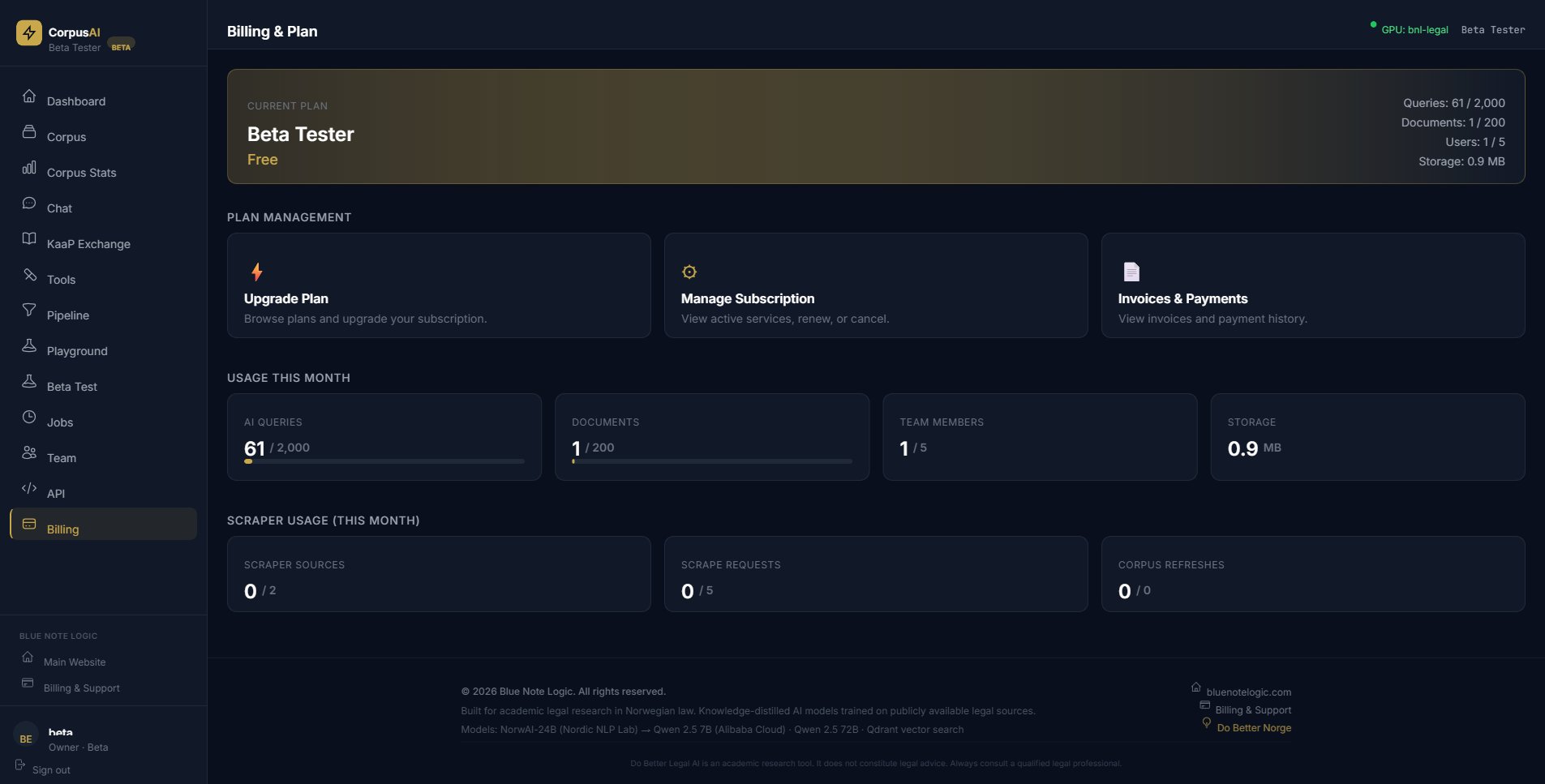
Current Plan
The top banner shows your current plan name, plan tier, and a summary of your usage: queries, documents, users, and storage.
Plan Management
- Upgrade Plan: Browse available plans and upgrade your subscription.
- Manage Subscription: View active services, renew, or cancel.
- Invoices & Payments: View your invoice history and payment records.
Usage Tracking
The Usage This Month section shows real-time gauges for AI Queries, Documents, Team Members, and Storage against your plan limits. The Scraper Usage section tracks Scraper Sources, Scrape Requests, and Corpus Refreshes.
Need Help?
Visit bluenotelogic.com for support and documentation.
Contact us via Billing & Support in the sidebar, or reach out to our team.